

Follow the steps below to get started with the client.
Step 1: Customize Your Email, Brand, Logo, and Template
Before processing orders, you can configure your business information in the client, including:
- Custom email settings
- Brand name
- Logo
- Delivery template
These settings help you build a consistent brand image and provide a better customer experience during order fulfillment.
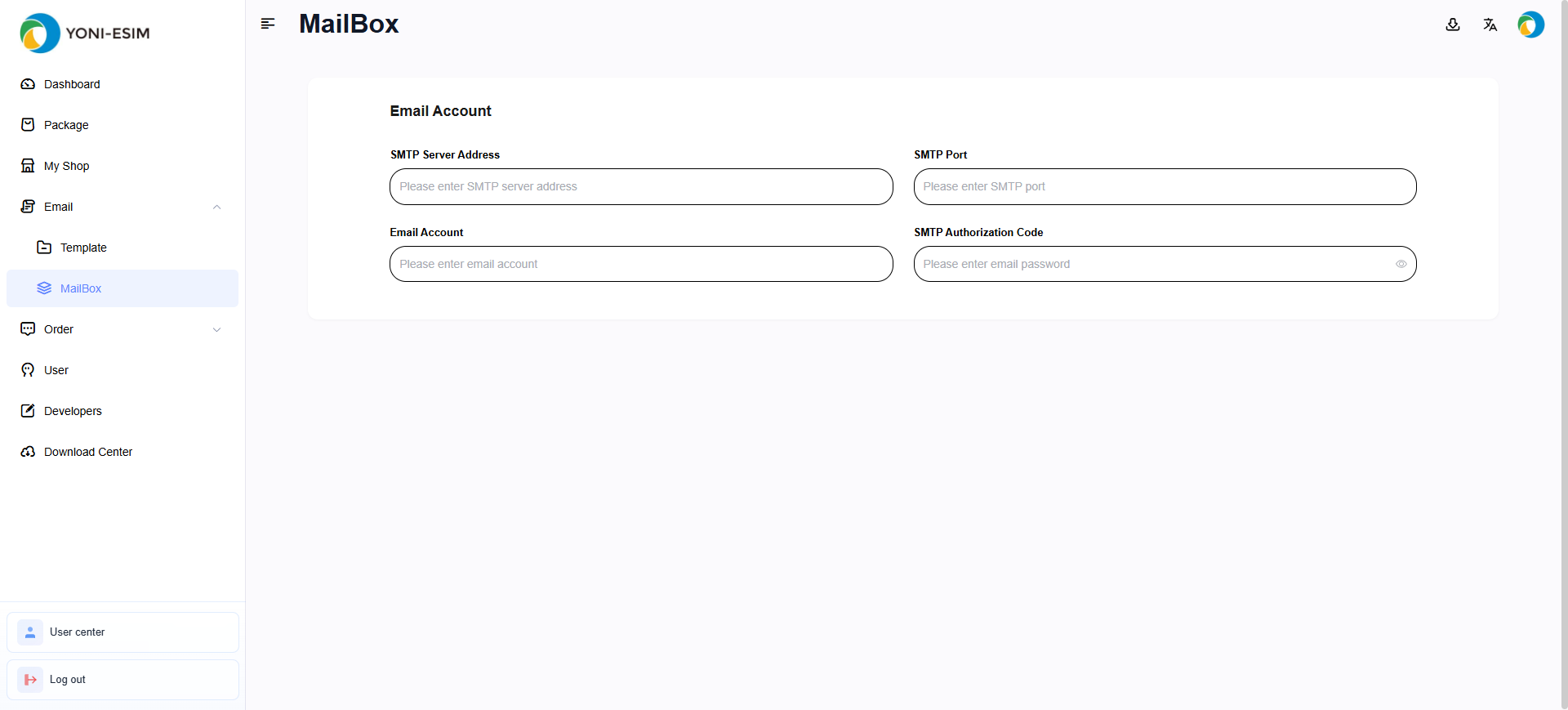
email settings
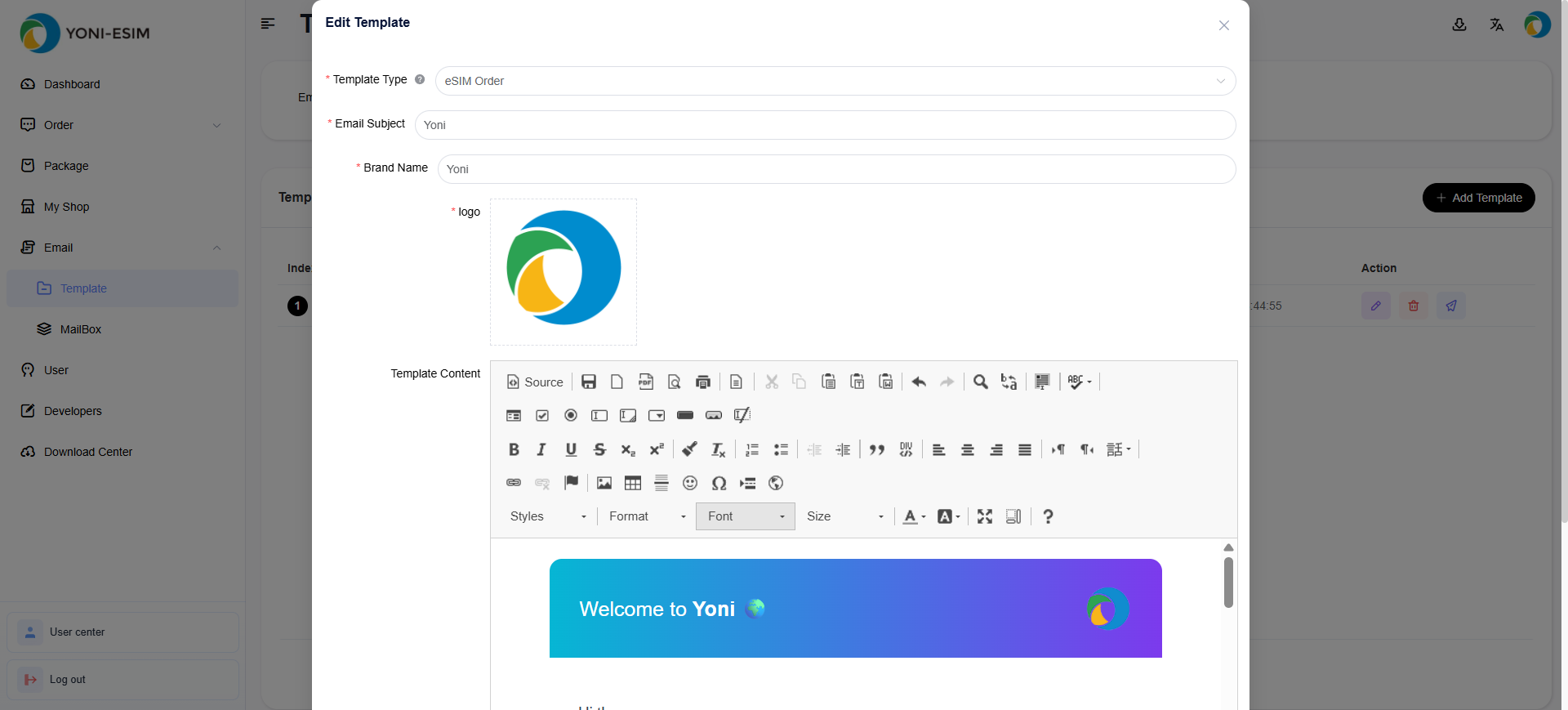
email template
Email Example
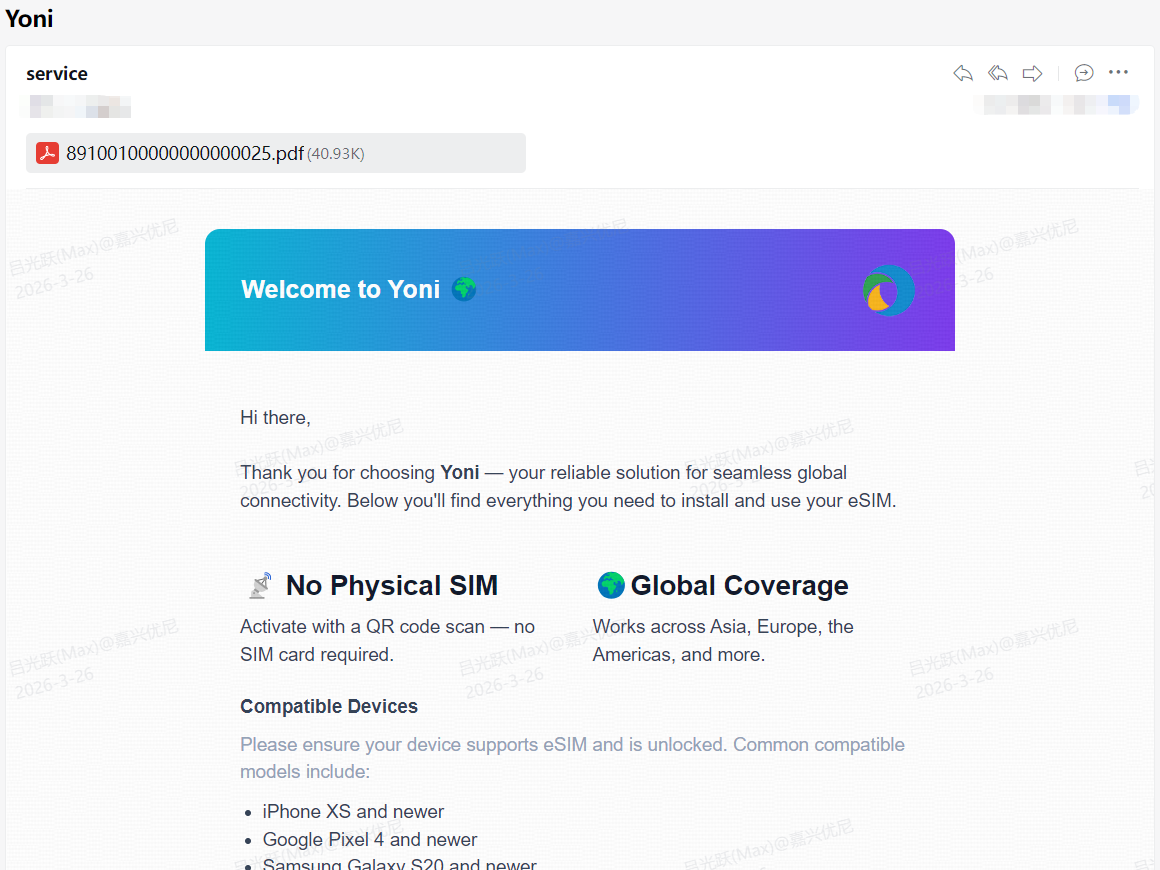
email content
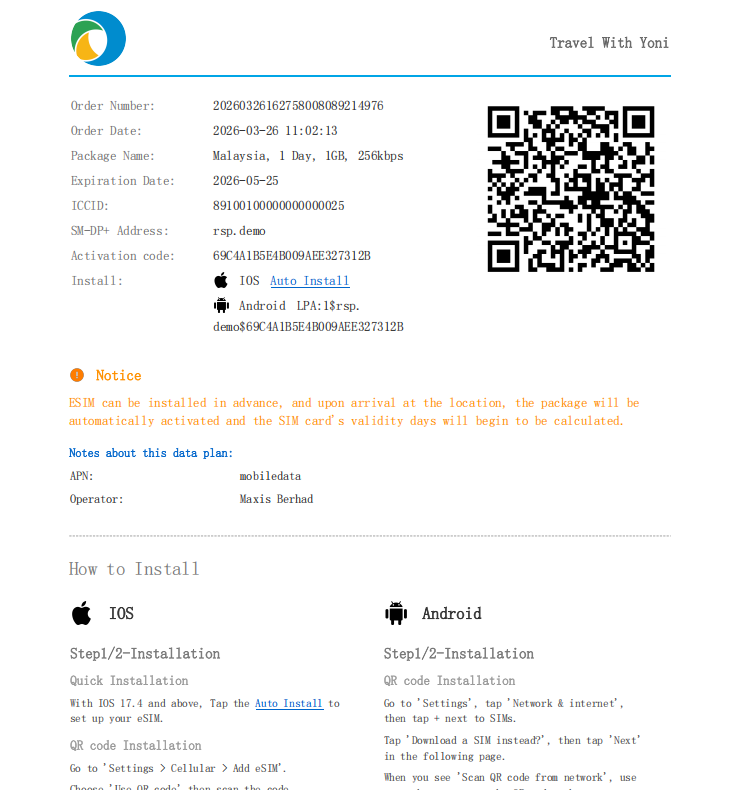
email attachment
Step 2: Place Orders Manually for Single or Multiple Packages
The client supports manual order placement for both single-package and multiple-package scenarios.
You can select the required eSIM packages and submit orders directly through the client, making it easy to handle different sales and fulfillment needs.
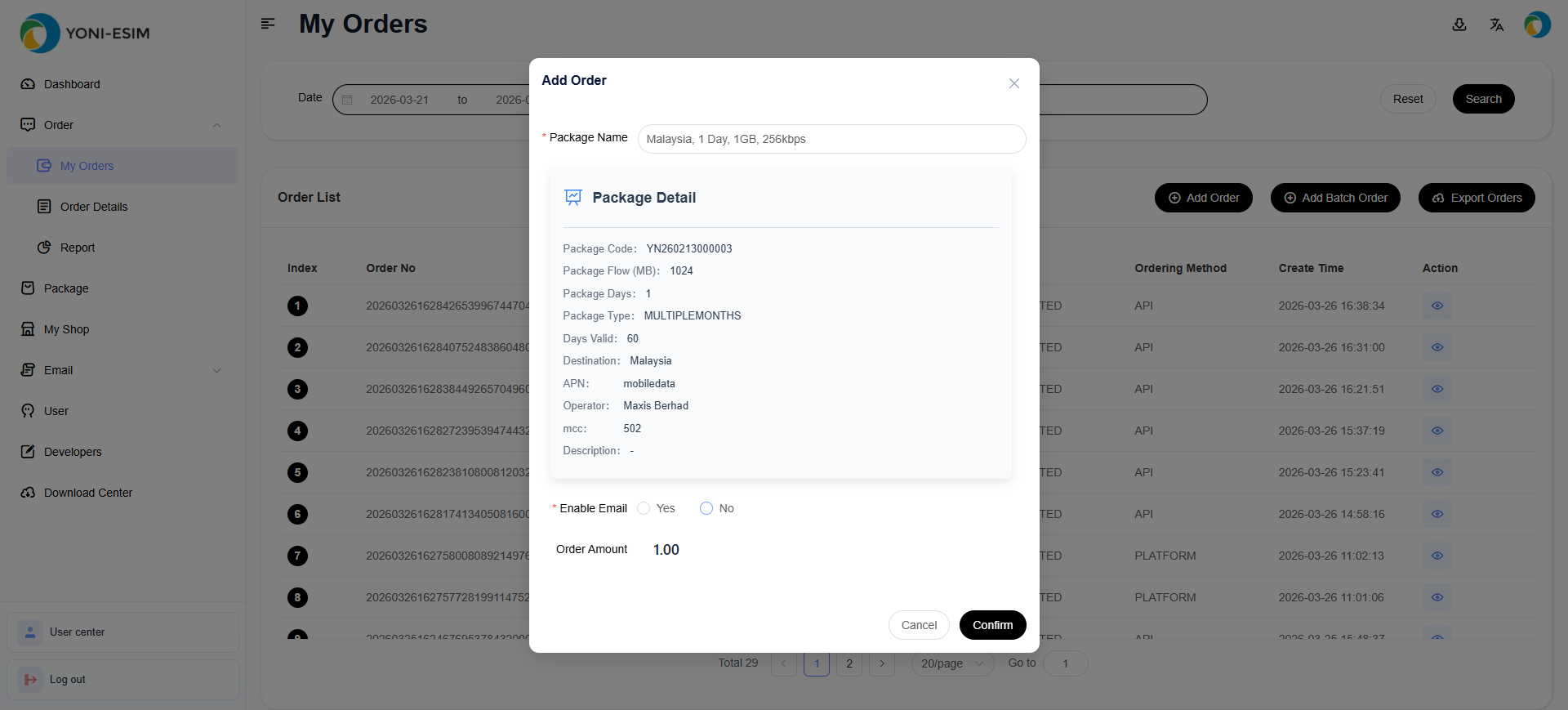
single-package
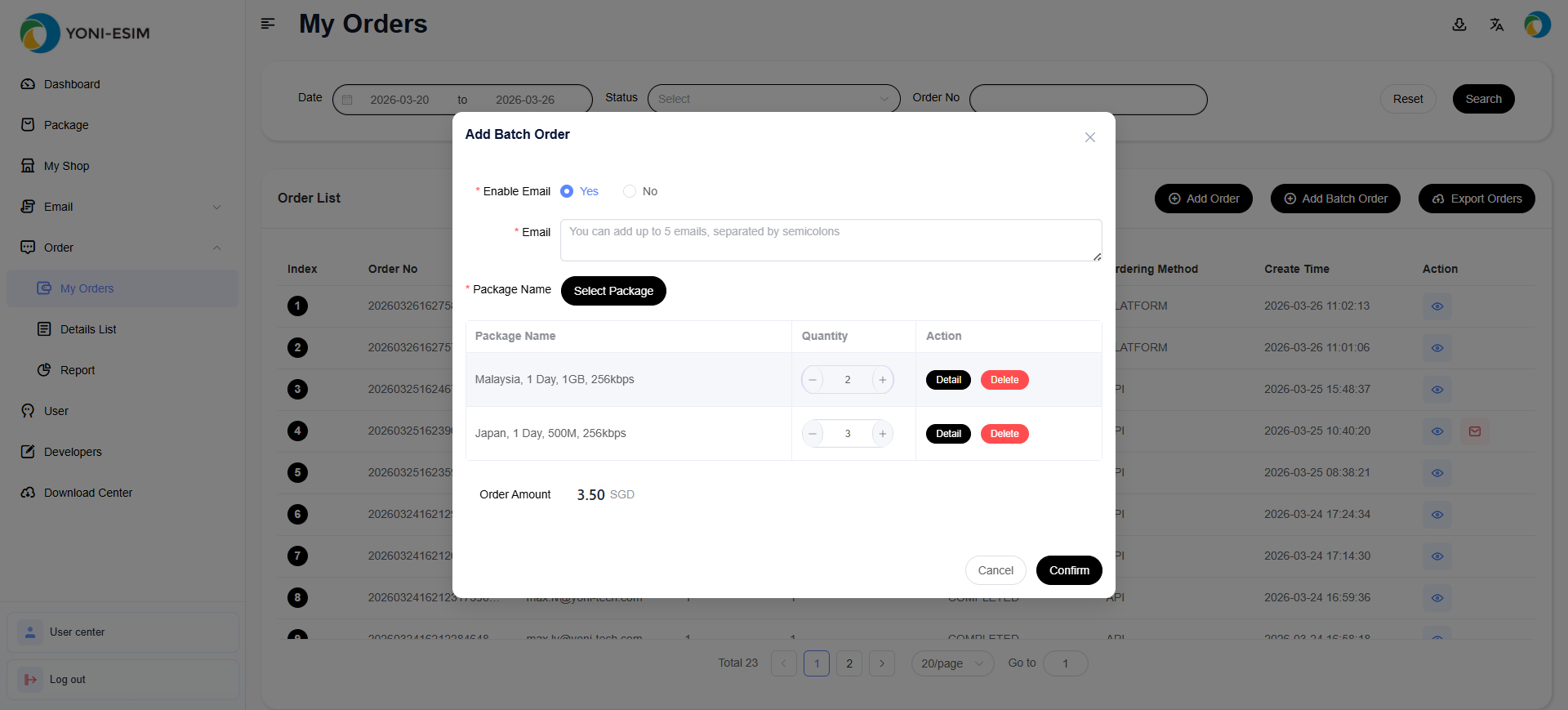
multiple-package
Step 3: Configure Automatic Fulfillment Binding
The client supports automatic fulfillment binding with e-commerce platforms.
After completing the platform binding and related configuration, orders from connected stores can be processed and fulfilled automatically, improving operational efficiency and reducing manual workload. If you need assistance with the configuration, please contact our technical team.